


Odoo Form and Field Customization: Methods, Best Practices, and Use Cases
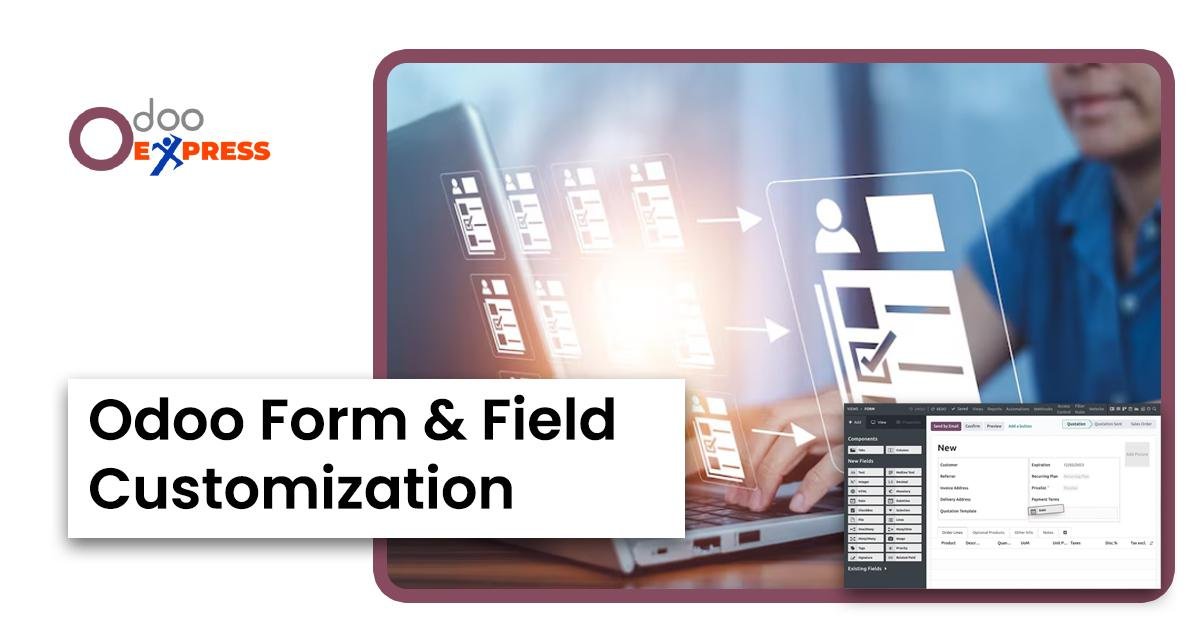
Most Odoo users eventually hit the same wall. The default forms sort of work, but they never quite match how your business captures information. A salesperson needs an extra field for customer PO numbers. Your warehouse team wants a lot of attributes visible at a glance. HR keeps asking for a manager approval checkbox that is not there.
This is where Odoo form and field customization comes in. You do not rewrite Odoo. You adjust what users see and what data they enter.
Why Customization Matters
Default Odoo is built for a generic business. Yours is not. Without customization, your team either works around missing fields or keeps data in spreadsheets. Both are bad.
Here is what proper customization does:
-
You capture the data your process requires
-
Users stay inside Odoo instead of using external notes
-
Required fields prevent incomplete records
A clean form speeds up your team. When a sales rep sees only what matters for a quote, they finish faster and make fewer mistakes. Effective Odoo form and field customization directly reduces the time spent hunting for information or correcting entry errors.
How Odoo Fields and Forms Work
Every piece of data in Odoo lives in a field. A field can hold text, a number, a date, a yes/no toggle, or a link to another record. The form shows those fields to the user.
To add a custom field, you do two things. First, tell Odoo the field exists and what type of data it stores. Second, place that field on the form.
Widgets change how a field looks. A date field can show a calendar picker. A status field can display colored dots instead of plain text.
Three Ways to Customize Odoo Forms
You have three options. Pick based on who you have on your team.
Odoo Studio is the point-and-click option. You drag fields onto forms, rearrange sections, and hide what you do not need. No code required. Good for basic changes like adding a text field or moving a button.
XML inheritance is for when Studio is not enough. You write XML that modifies existing views. This gives you control over exact placement and conditional visibility. You need a developer who knows Odoo views.
Custom modules bundle your changes into a package. Modules survive system updates. You can install them across multiple databases. For a production Odoo instance, this is the right path for anything beyond small tweaks.
Making Fields Behave Better
You can make fields dynamic.
-
Make a field required only when another field has a value
-
Hide a section until the user selects a certain option
-
Set fields as read-only after a record reaches a stage
-
Fill in values based on related records
For example, show a "lot number" field only when the user checks a "track inventory by lot" box. This keeps your interface clean.
Layout matters too. Group related fields. Put important fields near the top. Use tabs to separate sections on long forms. A cluttered form frustrates users. A clear layout helps them.
Best Practices
Start with the workflow, not the form. Watch how users do their jobs. Ask what information they write down outside Odoo. Those are your candidate fields.
Do not add a field just because you can. Every extra input is a chance for mistakes. Keep only what is necessary.
Name your fields clearly. "Customer PO Number" is good. "X_customer_ref" is bad. Consistency matters. If you call it "Vendor ID" on one form, do not call it "Supplier Code" on another.
Test with a small group before rolling out widely. They will find the awkward placements and confusing labels that you missed. Fix those early.
Write down your changes. Six months from now, someone will ask why a field exists. A short note saves time.
Common Use Cases
Different departments need different fields.
Sales teams add fields for customer PO numbers, requested ship dates, approval status, and lead source tracking.
Inventory and manufacturing teams add lot numbers, quality inspection results, vendor lot references, and bin location overrides.
HR departments add onboarding checklist items, equipment requests, and manager approval steps.
Accounting adds cost center allocations, project codes, and tax handling fields.
Each of these seems small. Together, they make Odoo fit your operation.
Conclusion
Customizing Odoo forms removes friction between your team and their work. Every field you add or remove either helps or hurts. Make sure it helps.
For decision-makers running Odoo today, the result is simple. Better forms mean better data. Better data means better decisions. When forms match your workflow, your team stops fighting the software and starts using it
Read More Related Blogs :-
Top Odoo Development Services Companies in USA
Odoo Integration Services | Shopify, POS, Payments & CRM Integration
Odoo Migration Services | Upgrade to Latest Odoo Erp Version
Odoo ERP Software | All-in-One Open Source CRM, Accounting & Inventory
Κατηγορίες
- Lifestyle
- Motivation
- News & Trends
- AI
- Gadgets & Reviews
- Tech News
- Marketing
- Εκπαίδευση
- Health & Fitness
- Travel
- Food & Cooking
- Entertainment
- Home & Living
- Sports
- Art
- Causes
- Crafts
- Dance
- Drinks
- Film
- Fitness
- Food
- Παιχνίδια
- Gardening
- Health
- Κεντρική Σελίδα
- Literature
- Music
- Networking
- άλλο
- Party
- Religion
- Shopping
- Sports
Διαβάζω περισσότερα
We provide all medical rehabilitation services like neuro, cardiac, pulmonary, and more. we are the first Robotic rehab center in Hyderabad. Wellknox is Hyderabad's best rehabilitation center.

Owning a property is a major achievement, but having the right legal documents is equally important. One of the most essential documents for rural and semi-urban properties is the Gram Panchayat Khata. Many property owners are unaware of its importance until they face issues related to ownership, taxation, loans, or resale. A Gram Panchayat Khata acts as an official property record maintained...

Collier County, located on the southwestern coast of Florida, has become one of the most desirable regions for residential and commercial growth in the United States. Known for its coastal landscapes, expanding infrastructure, and steady population increase, the county continues to attract new residents each year. Within this evolving environment, Collier County builders play a vital role in...

Planning a wedding involves countless details from floral arrangements and catering to lighting and sound. Yet, one crucial aspect often overlooked is guest comfort, especially when it comes to temperature control. A high-quality wedding air conditioner can transform your venue into a comfortable oasis, ensuring your guests enjoy every moment without sweating through the celebrations. For event...

Running a startup or managing a growing company involves much more than sales, marketing, and operations. Every successful business needs strong legal protection to avoid disputes, maintain compliance, and protect its long-term future. This is where professional legal document preparation becomes essential. From startup agreements and employment contracts to compliance records and dispute...
